Gemini Omni 1.2 Flash Review: Can Google Make AI Video Cheaper and Easier to Edit?
Gemini Omni 1.2 Flash is Google's latest short-form video generation and editing model, announced on November 5, 2026. It supports native clips up to 15 seconds with synchronized audio, while Google's published 720p price falls to approximately $0.07 per second. The update targets creators and businesses that need to generate, revise, and deliver video repeatedly.
The important change is the production workflow. A useful product video needs more than an impressive first frame: the item must remain recognizable, the action must make sense, and revisions should preserve the parts that already work. Omni 1.2 Flash is worth evaluating against those requirements, especially when a team produces variations of the same creative idea.
For the wider ecosystem, our Google Gemini and Google AI hub connects model explainers, access guides, and practical Google AI tutorials.
Updated November 6, 2026. Pricing examples are in USD and exclude additional charges unless stated.
This review analyzes published specifications and workflows rather than firsthand generation tests.
QUICK ANSWER
Gemini Omni 1.2 Flash is Google's video generation and editing model for short clips with synchronized audio. Google advertises native generation and editing up to 15 seconds and a 720p video price of approximately $0.07 per second, 30% below Omni 1.1. It is worth evaluating for product videos, social ads, and repeatable creative workflows. This guide analyzes published capabilities; it does not claim hands-on testing or independent benchmark results.
My verdict: worth a controlled trial for short product scenes and iterative creative work. The deciding metric is how much it costs to produce an approved asset, including the attempts and revisions required to get there.
1. What Is Gemini Omni 1.2 Flash?
Gemini Omni 1.2 Flash combines short video creation with conversational revisions, allowing a creator to develop a shot over several instructions. Its model identifier is gemini-omni-1.2-flash, and Google's release notes describe text, image, and video inputs with video output and synchronized sound through the Interactions API.
Think of the task as directing a small scene. You provide the subject, setting, action, and desired camera behavior. After reviewing the result, you ask for a specific change. That approach is especially useful when the overall composition works but a background, lighting choice, or product presentation needs adjustment.
A retailer might start with approved product photography and request a short lifestyle sequence. A founder might need several versions of the same launch concept. An educator might want one visual demonstration that supports a longer explanation. These are sensible evaluation scenarios, rather than promises that every generated clip will be ready to publish.
The distinction between a scene and a finished video matters. A generated clip can provide the central visual, while the deliverable still needs accurate captions, brand typography, an offer, and a final edit. Plan those elements before deciding that a single generation covers the whole job.
If this is your first encounter with the family, our original Gemini Omni Flash explainer provides the background on conversational video creation. This guide focuses on the November update and the decisions it creates for current users.
2. Gemini Omni 1.2 Flash Specifications
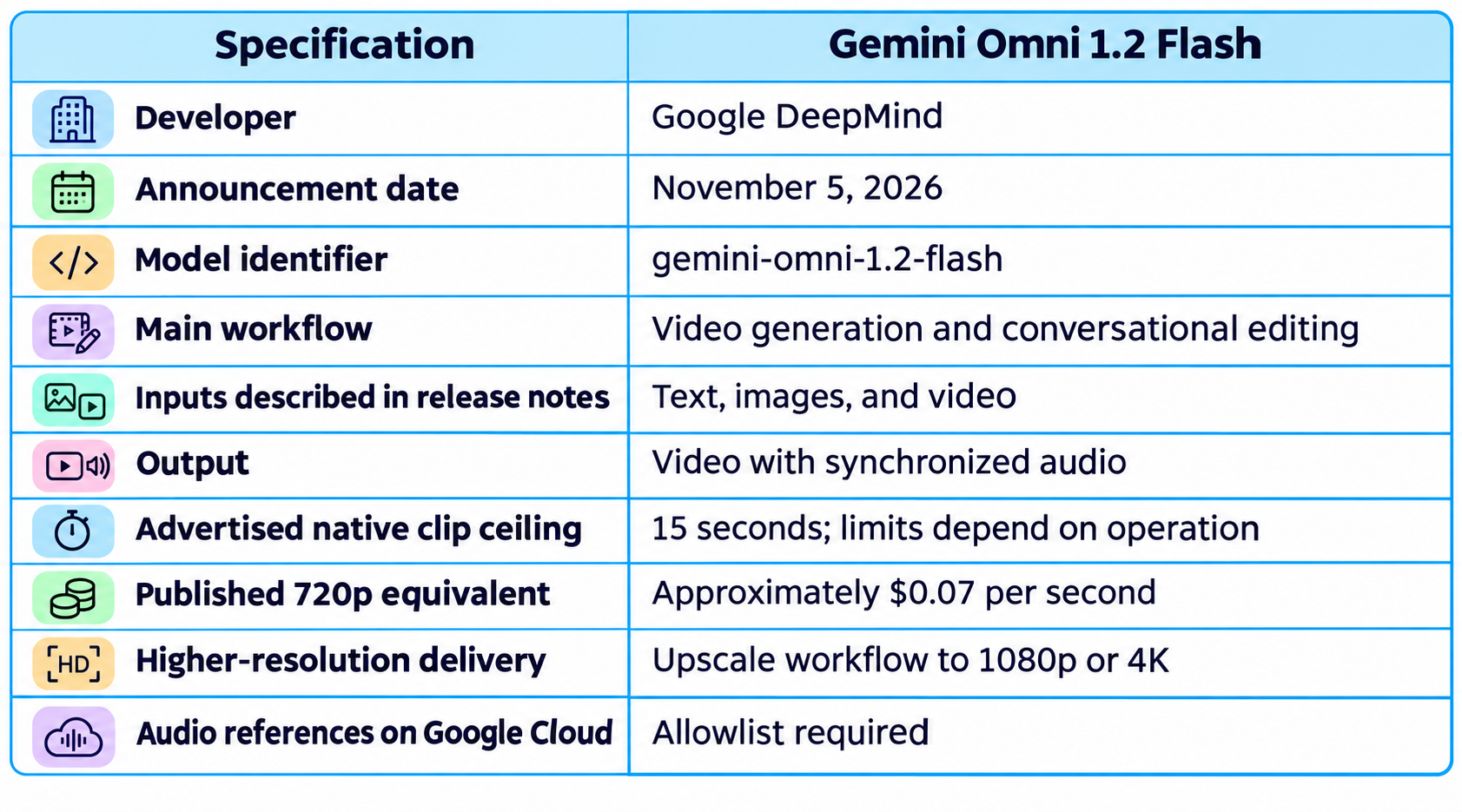
These are published capability summaries, not independently measured performance results. Confirm the supported operation and account entitlement before turning a specification into a production commitment.
3. Gemini Omni 1.2 Flash vs Omni 1.1
The clearest measurable changes are a longer native clip ceiling and a lower published 720p rate. Google also reports improvements to reference following, visual continuity, dialogue, and camera control, which need evaluation on your own scenes.
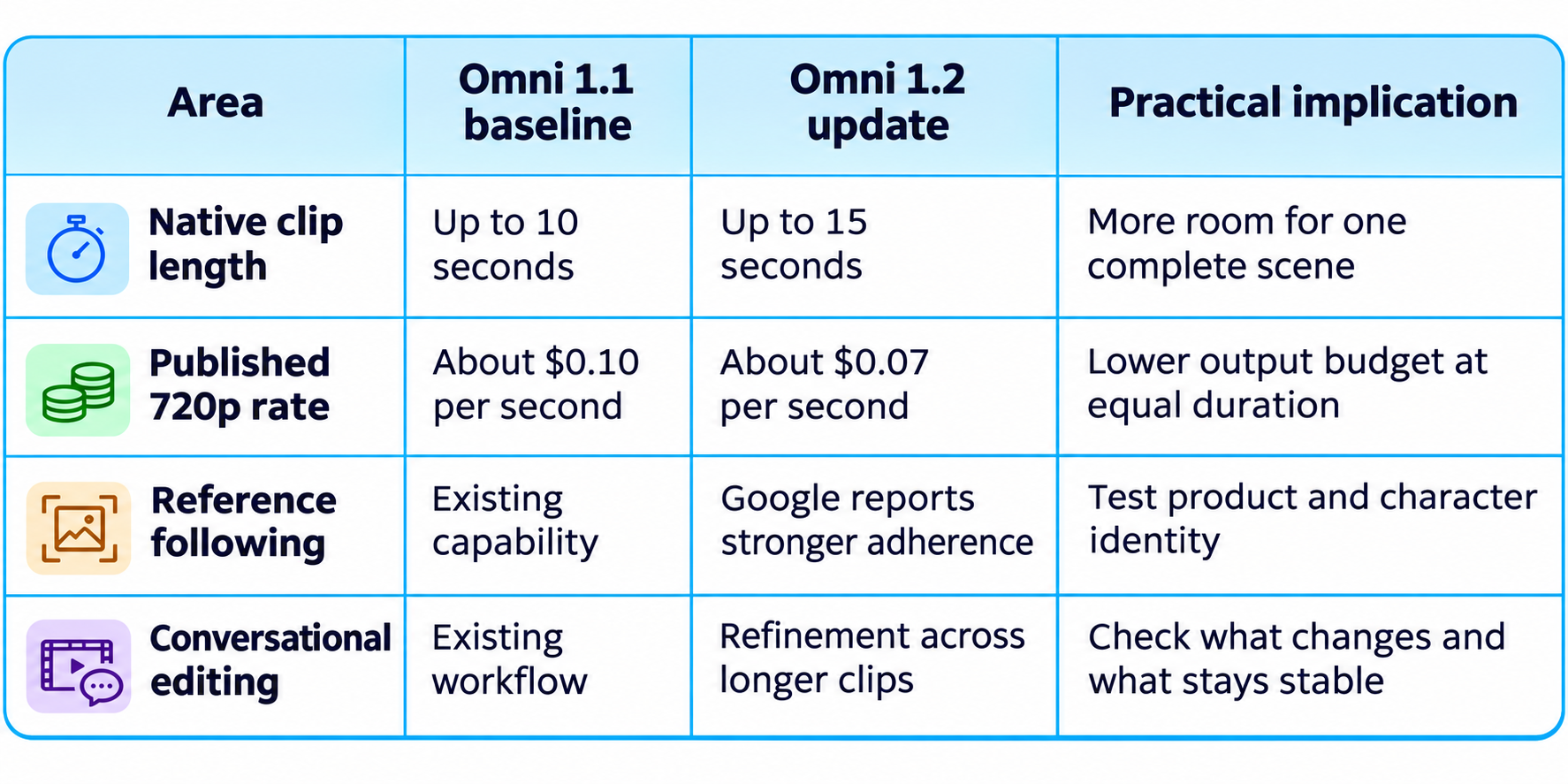
The duration increase is 50%, calculated from the move from 10 to 15 seconds. Creatively, that extra time can accommodate a slower reveal, a clearer demonstration, or a less rushed ending. It should not become an excuse to pack several unrelated scenes into a short prompt.
Google's announcement describes whole-second duration selection from 3 to 15 seconds. Operation-specific limits still matter: a general generation ceiling does not establish that every interpolation, reference, or extension workflow accepts the same duration. Confirm the exact operation before building a template around it.
4. Reference Following and Product Consistency
Reference material establishes what the model should preserve. Use images that agree on color, shape, proportions, and packaging. Conflicting views make it harder to decide whether a result follows the brief, even before considering model behavior.
Our Gemini Omni 1.1 Flash review explains the preceding workflow and its limitations. Use it to identify what you want to retest after upgrading, rather than carrying an older verdict forward unchanged.
5. Gemini Omni 1.2 Flash Pricing
At Google's advertised 720p equivalent of approximately $0.07 per second, a 15-second generation represents about $1.05 in video-output cost. That is a planning calculation, not a guaranteed all-inclusive invoice.
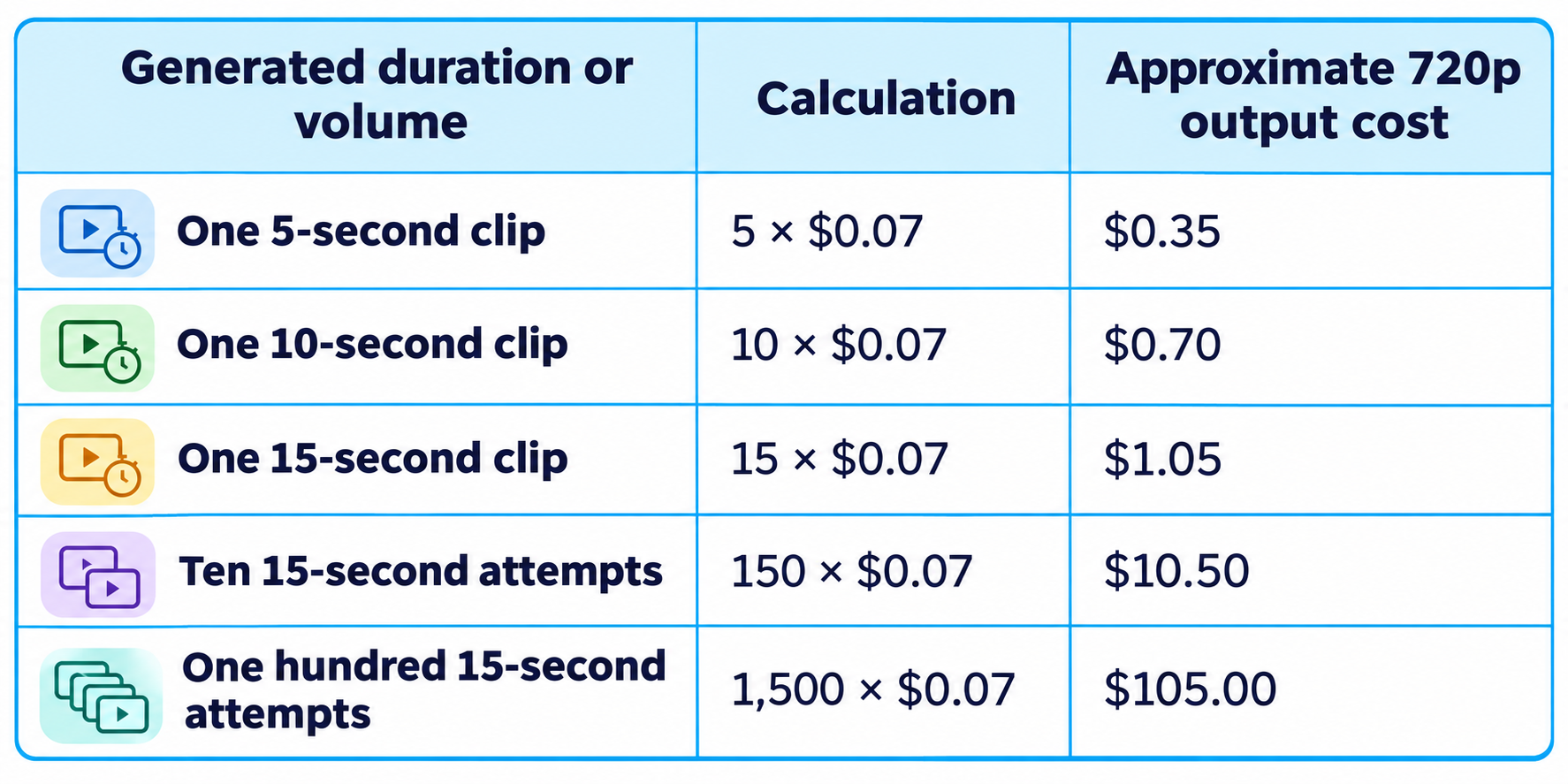
Input processing, other billed outputs, further edits, upscaling, platform charges, and taxes can change the total. Check the billing terms for the service you use. A third-party creative platform may package usage differently from Google's direct offering.
The useful budget metric is cost per accepted clip. Suppose your team generates six 15-second attempts and approves two. Under the simplified 720p calculation, the output spend is $6.30 and the cost per accepted clip is $3.15 before other charges. If only one passes review, that figure becomes $6.30.
This is why acceptance rate deserves as much attention as the published unit price. A visually impressive model can be expensive if it regularly alters a product detail your client cannot accept. Conversely, a modest improvement in edit reliability can save substantial review time across a catalog.
6. 360p Drafts and 4K Upscaling
Google describes a workflow that drafts at 360p or 720p and upscales selected results to 1080p or 4K. Treat high-resolution delivery as a finishing step. The presence of a 4K output option does not, by itself, establish native 4K generation.
Approve the idea, motion, and framing before paying for final delivery quality. A sharp version of the wrong shot is still the wrong shot. For planning, separate concept exploration from final asset production so the team can see which stage consumes the budget.
7. Access Through AI Studio, Gemini, Flow and Vids
Google lists developer, business, and consumer access routes, but account eligibility and feature availability differ between them. The launch announcement identifies Google AI Studio and the Gemini API, Google Cloud, Flow, Google Vids, and a Gemini app rollout.
For developers, begin with the model available in your project and confirm the operation you need. Record the model ID, billing configuration, resolution, duration, and request settings. This basic record prevents confusion when two teammates compare results produced under different conditions.
For business deployments, Google Cloud's announcement describes general availability and Provisioned Throughput. It also explicitly states that audio references require allowlisting. Generated dialogue and uploaded voice-reference support are separate capabilities; do not design a voice-matching workflow until your access is confirmed.
For app users, the launch announcement specifically associates 15-second Gemini app creation with a rollout to Google AI Ultra subscribers. It also describes 15-second creation in Google Vids at no additional cost for eligible account routes. This does not establish unlimited generation or identical entitlements across products.
Our Gemini free access and paid plans guide explains the broader account distinctions. Check the entitlement shown in your own product before assuming a subscription includes the same video features as the API.
8. Gemini Omni 1.2 Flash API Integration
Start with a small test that exercises the complete job: submit references, generate a clip, request one edit, retrieve the result, and inspect it. A successful initial request does not establish that your application's entire workflow is supported.
Keep API credentials on the server, track request status, and save the relationship between the original generation and each revision. Add a clear user-facing state for queued work, failed requests, and completed assets. These are application design recommendations, not claims about a particular endpoint's response format.
Use Google's current quickstart for exact request syntax and supported parameters. Avoid adapting an older video example by changing only the model name. The official notebook is included in References for implementation details.
9. Input Quality and the Creative Brief
The most useful starting workflow is a small product video with one action, clear references, and one controlled revision. It produces an observable result without requiring a complex multi-scene campaign on the first attempt.
Prepare a focused asset set
Choose a clean product image and any additional views needed to establish identity. Remove obsolete packaging and conflicting color variants from the brief. Decide which details must remain accurate, including materials, proportions, marks, and visible text.
If you still need reference assets, our AI product photography prompts for ecommerce, published October 27, offers starting points for studio and lifestyle imagery. Any generated reference should be checked against the actual item before it becomes a video input.
Define one scene and one audience
Write a single sentence describing who should watch and what they should understand. For example: a commuter should see how a compact backpack fits into a daily routine. That is more useful than asking the model to make a premium, viral, cinematic advertisement without a specific demonstration.
Choose the delivery format at this stage. A vertical social placement and a landscape website banner ask different things of the composition. Decide where the subject needs to sit and whether you will add text during finishing.
10. Recommended Production Workflow
Generate a draft and inspect the whole clip
Review more than the opening frame. Check the beginning, middle, and ending, then watch at normal speed. A product may look correct in a still while changing shape during a turn or becoming obscured at the moment it needs to be understood.
For the first evaluation, score only a few criteria: product identity, action completion, camera stability, and overall usability. Keep notes concrete. “The strap changes attachment point midway through the shot” gives the next prompt a clear target.
Request one targeted edit
Ask for one change and state what should remain stable. If the background is wrong, change the background before adjusting the camera, wardrobe, and soundtrack. Smaller revisions make it easier to identify whether the edit solved the original problem.
Compare the revised clip against the last approved version. Look for unintended changes in product shape, timing, performance, and framing. A successful requested change can still introduce a new problem elsewhere.
Finish the approved asset
Add verified copy, accurate captions, and final branding after the visual has passed review. Check the actual export on the intended device. A label that is readable on a desktop preview may disappear in a mobile feed.
When the job expands into several shots, captions, and coordinated sound, our Motion general video agent review, published October 20, examines the broader editing workflow. That is the natural next question after you have generated the scene itself.
11. Gemini Omni 1.2 Flash Product Video Prompts
A useful Gemini Omni 1.2 Flash prompt specifies the subject, action, setting, camera, audio, and preservation requirements. The following examples are suggested briefs, not tested outputs or guarantees of model behavior.
Product reveal prompt
“Create a 10-second vertical product scene using the attached reference image. Show the bottle upright on a pale stone counter in soft morning light. The camera moves slowly closer while a gentle reflection travels across the glass. Preserve the bottle shape, cap, label position, and product color. Keep the background simple. Use quiet room ambience without speech.”
The brief gives the camera a manageable job and makes product identity explicit. If label accuracy is essential, review it frame by frame and consider adding final text in the edit rather than relying on generated lettering.
12. Conversational Video Editing Prompts
“Change only the background to a warm beige studio wall. Keep the bottle, label, reflections, camera movement, framing, and clip duration as close as possible to the previous version.”
The phrase “as close as possible” reflects the generative nature of the task. You are requesting preservation, then checking the result. You are not instructing a deterministic editor that can guarantee every unaffected pixel remains identical.
13. Educational Video and Dialogue Prompts
Short educational demonstration
“Create a 15-second landscape scene showing a simple desk setup. Begin with a wide view of a notebook and a small desk lamp. Move slowly toward the notebook as the lamp turns on. Keep the scene physically plausible and the camera movement continuous. Use soft ambient room sound. Leave explanatory labels for the final edit.”
The demonstration has a visible beginning and outcome. An educator can add the explanation separately, verify its accuracy, and adjust pacing without forcing the generated scene to carry every part of the lesson.
Dialogue scene prompt
“Create a short scene with two clearly separated characters at a cafe table. Character A asks, ‘Ready to begin?’ Character B replies, ‘Let's start.’ Keep the camera steady and the turns distinct. Use low background ambience so the dialogue is easy to hear.”
Begin with short lines when evaluating speaker assignment and lip synchronization. Longer scripts introduce more opportunities for timing problems. If a specific voice is required, confirm the relevant reference permissions and access before building the production around it.
For more structures to adapt, our 100 best AI video prompts covers varied scene types. Choose an example that matches your objective and simplify it before adding extra actions or camera changes.
14. Quality, Benchmarks and Limitations
Compare Gemini Omni 1.2 Flash against alternatives on the same production task, using the same references and acceptance criteria. A launch demonstration cannot establish which model will perform best on your product, audience, or visual style.
Google acknowledges continuing work on fast sports action, rapid script changes, and complex physics. Those are useful stress tests if your workload depends on them. Its claims about improved dialogue and consistency should be treated as manufacturer claims until your own evaluation supports them.
Create a small evaluation set before selecting a provider. Include an easy product shot, a rotation that exposes identity details, a scene with movement, a short dialogue exchange, and one targeted edit. Keep the prompts representative of work you actually expect to publish.
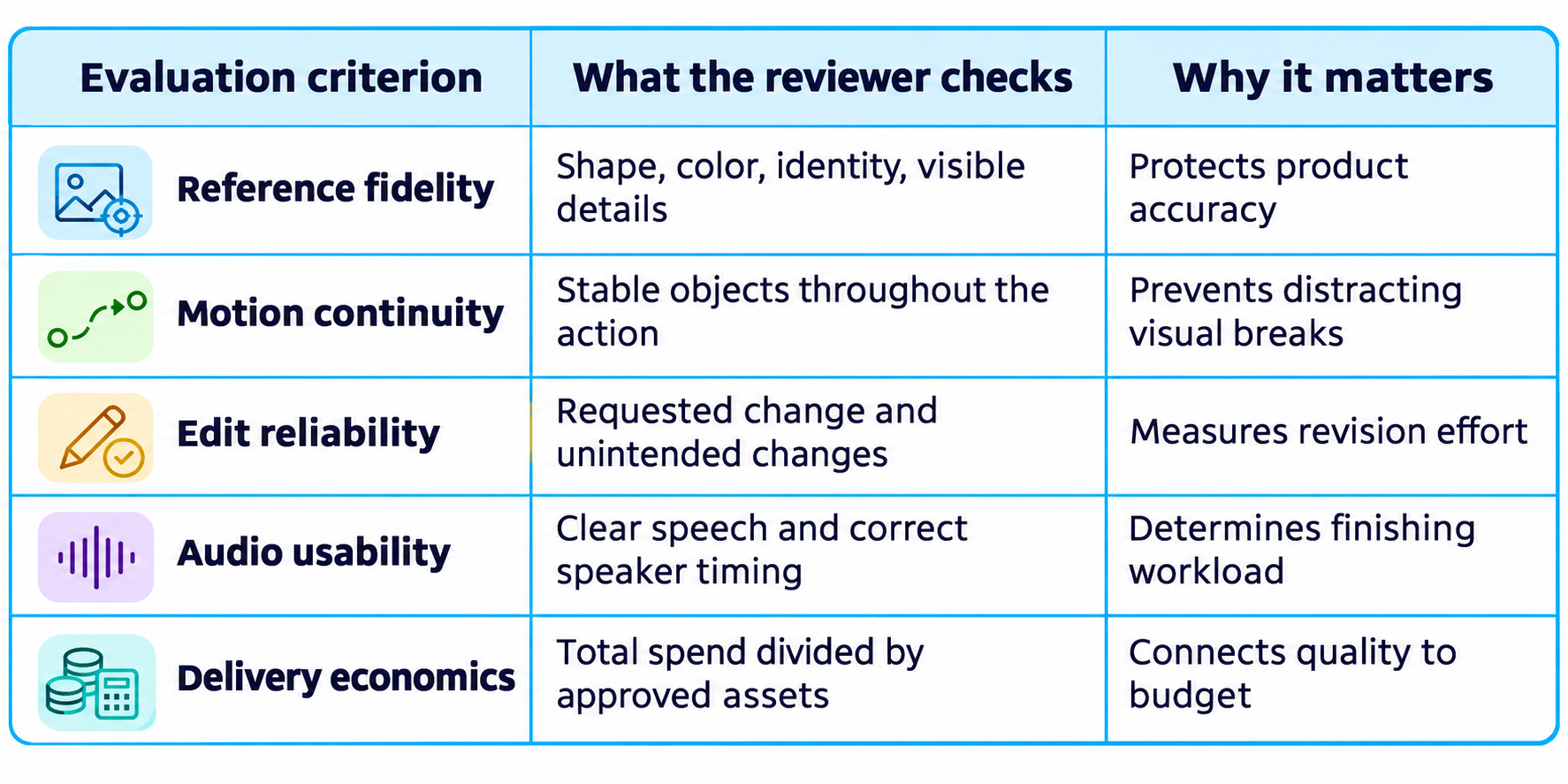
Run more than one attempt for each scenario. A single success may be luck, and a single failure may not represent typical behavior. Record rejected outputs as well as winners so the comparison reflects the actual work needed to reach approval.
15. Gemini Omni 1.2 Flash vs Other Video Workflows
For a long presenter segment, compare systems designed around audio-driven performance. For a campaign containing several scenes and graphic elements, evaluate the editing and assembly layer as well as the generation model. For tightly controlled product demonstrations, consider whether conventional footage or animation gives you more predictable accuracy.
Our OmniHuman 2.0 review, published October 16, explores an audio-driven character workflow. It is relevant when a sustained speaking performance is the core requirement, rather than a short generated product scene.
My view is that model selection should follow the cost of correcting mistakes. A beautiful scene with the wrong product shape can be less valuable than a simpler scene your team can approve immediately. Measure the output against the business requirement before judging its visual ambition.
16. Best Use Cases and Who Should Use It
Gemini Omni 1.2 Flash is worth a controlled trial when your team produces short visual assets repeatedly and expects to revise them. Its advertised pricing and editing workflow make that a more useful starting hypothesis than an unsupported claim that it is the best AI video generator overall.
Ecommerce teams can evaluate catalog animations and lifestyle variations. Agencies can test whether targeted edits shorten client revision cycles. Founders can prototype launch visuals before committing to a larger production. Developers can investigate whether the generation and revision loop fits an application users will return to.
Be more cautious about assigning it a job that depends on exact physical behavior, flawless packaging text, or a long continuous performance. In those cases, define the non-negotiable acceptance conditions first and stop the trial if the correction work outweighs the benefit.
The decision rule is straightforward: keep using it if your own tests show acceptable output, manageable revision effort, and a sustainable cost per approved asset. Expand from one repeatable scene type before turning it into a broader creative pipeline.
17. Is Gemini Omni 1.2 Flash Worth It?
Yes, if your tests show that its generation and revision loop reduces the work needed to produce an approved short clip. The advertised output rate makes it accessible for a small evaluation, but acceptance rate, finishing time, and total spend determine whether it is economical for your team.
For an existing Omni user, the strongest reason to retest is the combination of a longer native scene and a lower 720p output price. For a new user, begin with one repeatable creative task before expanding into complex campaigns. Treat a successful test as evidence for that specific workflow.
18. Final Verdict
Gemini Omni 1.2 Flash is a meaningful update for creators who value control over a short scene and expect to refine it after generation. The 15-second ceiling and published $0.07-per-second 720p rate provide concrete reasons to evaluate the release. Google's quality claims are promising, but the approval decision should come from representative tests.
Our recommendation is to start with a clean reference, a single visible action, and one targeted edit. Keep a record of rejected attempts and review time. If the model preserves the details your work depends on at an acceptable total cost, it can earn a place in your video workflow.
Frequently Asked Questions
What is Gemini Omni 1.2 Flash?
Gemini Omni 1.2 Flash is Google's video generation and conversational editing model, announced on November 5, 2026. It creates short videos with synchronized audio. Its model identifier is gemini-omni-1.2-flash.
How much does Gemini Omni 1.2 Flash cost?
Google's advertised 720p video-output rate is approximately $0.07 per second. That puts a 10-second clip at about $0.70 and a 15-second clip at about $1.05 before inputs, additional edits, and other charges. Budget for the attempts required to produce an approved clip.
Can Gemini Omni 1.2 Flash generate 15-second videos?
Yes. Google advertises native video generation and editing up to 15 seconds, compared with the previous 10-second ceiling. Check the operation you plan to use, since reference, interpolation, and extension workflows can have different limits.
Is Gemini Omni 1.2 Flash free to use?
Free access depends on the Google product and your account entitlement. Google announced no-additional-cost 15-second generation through Google Vids account routes. That does not mean the Gemini API is free or that every account receives unlimited video generation.
Can Gemini Omni 1.2 Flash edit an existing video?
Conversational editing lets you request changes to a clip, such as a different background or lighting. State the change clearly and identify the details that should stay consistent. Confirm that your chosen platform supports the video input and editing operation you need.
Does Gemini Omni 1.2 Flash support voice references?
Google Cloud says audio references require allowlisting. Generating speech within a video is different from uploading a voice reference, so confirm access before planning a voice-conditioned workflow.
Can Gemini Omni 1.2 Flash create 4K video?
Google describes drafting at lower resolutions and upscaling selected results to 1080p or 4K. Treat 4K as a delivery option through that workflow rather than assuming native 4K generation. Review the final export for detail and motion quality.
Is Gemini Omni 1.2 Flash worth using?
It is worth evaluating for short product videos, social ads, and creative variations that require repeated edits. Compare product consistency, revision effort, and total cost per accepted clip. Choose it when those results fit your production needs and budget.
Recommended Blogs
- AI Product Photography Prompts 2026: Copy-Paste Ideas for Ecommerce
- Motion Review 2026: The General Video Agent for Editing, Design & Creation
- OmniHuman 2.0 Review: Price, Features, 5-Minute Video & Is It Worth It?
- Is Gemini Free? Limits, Pricing and Paid Plans
- Gemini Omni 1.1 Flash Review: Accuracy, Price & Is It Worth It?
- 100 Best AI Video Prompts 2026: Sora, Veo and Kling
Resources & Community
Join our community of 70,000+ AI enthusiasts and learn to build powerful AI applications. Build Fast with AI helps developers, creators and teams understand and implement practical AI.
Agentic AI Launchpad 2026
A structured six-week cohort program focused on building and deploying real-world agentic AI systems, with live sessions, mentorship, project reviews and a builder community.
Explore the program: Agentic AI Launchpad 2026
Free AI Resources
Explore more practical resources for image generation, prompt writing and learning AI.
References
- Google DeepMind: Introducing Gemini Omni 1.2 Flash
- Google Cloud: Gemini Omni 1.2 Flash generally available
- Google Cloud: Gemini Enterprise Agent Platform release notes
- Google Gemini Cookbook: Generate and edit videos with Gemini Omni
- Build Fast with AI: Website and learning programs
- Build Fast with AI: Agentic AI Launchpad
- Build Fast with AI: AI workshops